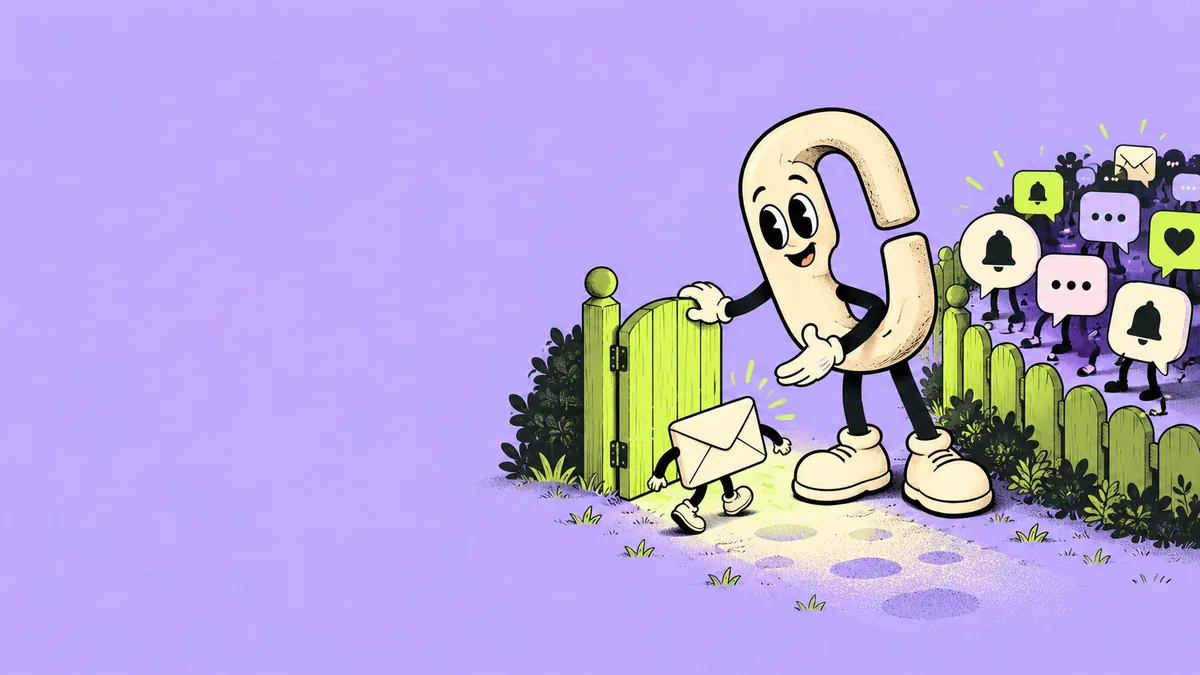
Start with the last few notifications that interrupted you. For each one, ask: “What would I need to do before my next planned check?” Keep immediate delivery where that answer matters, schedule updates that can wait, and disable alerts that you do not want at all.
You do not have to audit every installed app in one sitting. Five frequent sources are enough for a first pass. The aim is a set of choices that fits your responsibilities, not an empty notification screen at any cost.
Sort by the action, not just the app
An app can send several kinds of information. A delivery change may require action; a promotion from the same company may not. If an app provides its own notification categories, inspect those choices too. Do not assume the phone's app-wide switch distinguishes every type of alert.
Use this table as a worksheet. The examples illustrate questions to ask, rather than universal rules about which messages deserve attention.
| Category | Question | Possible example | Your choice |
|---|---|---|---|
| Immediate | Will waiting interfere with a real responsibility? | A time-sensitive change from someone you are meeting | ___ |
| Later | Is it useful when I choose to check? | A nonurgent community update | ___ |
| Unnecessary | Would I seek this information out myself? | A promotion I repeatedly dismiss | ___ |
Keep essential safety, care, and work requirements in view while you decide. If someone depends on you, agree on the communication channel they should use before you change it.
Make a small set of iPhone changes
These steps follow Apple's iOS 26 documentation. For other versions, select your version in Apple's guide.
Open Settings → Notifications, then select an app. To stop its notifications, turn off Allow Notifications. Where available, review its delivery, sound, and display choices. For sensitive message content, the app's Show Previews setting offers Always, When Unlocked, or Never. Apple's notification settings guide.
To group selected notifications for later delivery, open Settings → Notifications → Scheduled Summary, turn it on, choose delivery times, and select the apps to include. Pick times you actually intend to check. Apple's separate Apple Intelligence notification summaries condense notification text; they are different from Scheduled Summary's delivery schedule. Apple's notification and summary guide.
A useful starting experiment is one change in each category: preserve one needed alert, schedule one nonurgent source, and disable one unwanted source. Keeping the first pass small makes it easier to identify which choice needs correction.
Check privacy separately from interruption
A quiet notification can still reveal information on a screen someone else can see. While you review delivery, consider the content too. Would you be comfortable with a habit reminder, private conversation, or account-related message appearing while the phone is on a shared table?
Changing previews addresses how the notification is presented. It does not establish how an app stores data or who can access an account. Keep those questions separate, and avoid putting sensitive details in a reminder merely because you have made it quieter.
Leave yourself a review note
Copy this before you finish:
- Apps I changed: ___.
- Alerts I intentionally kept immediate: ___.
- My scheduled checking times: ___.
- What I will watch for: missed practical information, unnecessary interruptions, or repeated manual checking.
- Review date: ___.
At the review, ask whether you missed anything you needed, and whether the remaining alerts were useful. If you now open an app constantly to see what you missed, investigate that specific need. It may call for a different check-in time or a clearer agreement with another person, rather than another notification toggle.
For a particular work session or evening window, a Focus with essential contacts allowed can complement these everyday notification choices.
Sources and further reading
- Apple: Change notification settings on iPhone (iOS 26)
- Apple: View and respond to notifications on iPhone (iOS 26)
This article is an educational resource from the Unhook product team, not personalized medical advice. Examples and worksheets are illustrative. Read our content standards.